Add Your Stage Pass to Apple Wallet
Your Stage Pass can be added to Apple Wallet for quick and easy access on ceremony day.
Adding your Stage Pass to your phone helps you keep your pass and important ceremony information in one convenient place.
To view or add your stage pass to Apple Wallet through your Tassel account, please follow the steps below:
- Log in to your Tassel account.
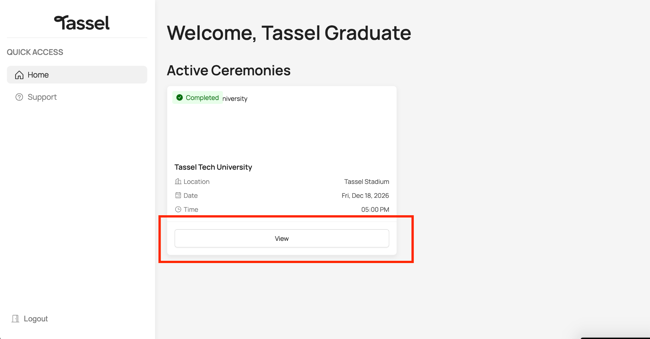
- Under Active Ceremonies, click View.
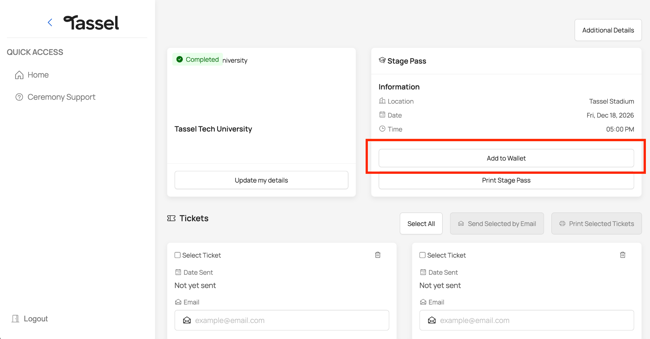
- Under the Stage Pass section, click “Add to Wallet”.
- Once your stage pass has been successfully added, a pop-up confirmation will appear in the upper-right corner of your screen.

- Open your Apple Wallet app to view your stage pass.
Having Trouble Adding Your Stage Pass?
If your stage pass isn't added successfully, make sure pop-ups are enabled in your web browser. For additional troubleshooting steps, refer to our article on Stage Pass Not Showing in Wallet After Adding.
Reminder on Ceremony Day:
- Make sure your Stage Pass has been added to your digital wallet.
- Review any additional information provided by your school.
- Make sure your phone is sufficiently charged.
- Have your Stage Pass ready when lining up to cross the stage.
Related Articles
Add Your Stage Pass to Google Wallet
Your Stage Pass can be added to Google Wallet for quick and easy access on ceremony day. Adding your Stage Pass to your phone helps you keep your pass and important ceremony information in one convenient place. To view or add your stage pass to ...Understand Stage Pass Sharing and Security
Your Tassel stage pass is unique to you as a graduate and is used to verify your registration when you arrive at your graduation ceremony. To help protect your registration information and ensure a smooth check-in process, please keep your stage pass ...Stage Pass Not Showing on Wallet After Adding
If you successfully added your stage pass to your digital wallet but it isn't showing, there are a few things you can try. Check Your Wallet Open your device's Wallet app and look for your stage pass. If you have multiple passes, scroll through your ...Print or Save Your Stage Pass
How to Print Your Stage Pass Follow the steps below to print your stage pass: Log in to your Tassel account. Under Active Ceremonies, click View. Click “Print Stage Pass” You will be redirected to a page displaying your stage pass. To print your ...How to Add Your Selfie During Graduation Registration
[Click here for an interactive tutorial] During graduation registration, you may be asked to submit a selfie to help match you with your graduation photos after the ceremony. You can take a new selfie using your device's camera or upload an existing ...